The Library provides access to thousands of databases of subscription-based articles, ebooks, media, and more. Because of licensing restrictions, off-campus access is limited to University of Illinois at Urbana Champaign staff, faculty, faculty emeriti, visiting scholars (with NetIDs), University High School students, and currently enrolled University students (including summer access for those enrolled in Fall classes). Please reference this FAQ for more on who can use the Library’s online resources.
How to access Library resources from off-campus
Connect through the Library Website (Preferred Method)
Connect to resources via the Library Catalog, the Databases by Subject list, or one of our many other search tools. These paths will send you through the proxy server (EZProxy) and prompt you to log in with your U of I NetID and password.
Note: In the Library Catalog, users do NOT need to click the “Sign in” button that appears in the gray banner under the “Requests” section in order to access electronic resources from off campus.

Use this sign in link only to request the delivery of physical materials or expand the search results when using the Library Catalog+ search mode. Contact circlib@library.illinois.edu if you cannot sign in to request catalog items.
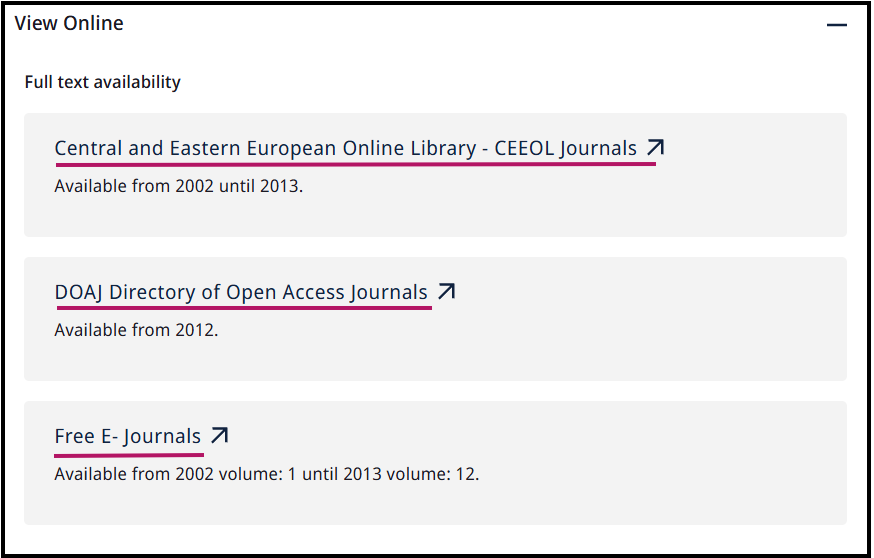
To access full text from the library catalog, click on the links under “Full text availability.” You will be prompted to log in with your NetID and password and dual authenticate, then be passed through to full text. Contact ertech@library.illinois.edu or use the “Report a Problem” button if you cannot access full text using the links under “Full text availability.”
Connect Using a Proxy Bookmarklet Add-on for Web Browsers
If you find yourself on a subscription-based resource that doesn’t recognize that you are affiliated with the U of I and prompts you to pay for the article, the proxy bookmarklet will prompt you to login as a U of I user then reload the page giving you full access (provided the Library has purchased or subscribed to the resource).
Proxy Bookmarklet Installation Instructions
- Install the proxy bookmarklet in your browser’s bookmark toolbar.
- When you come across an article that doesn’t recognize that you are affiliated with the U of I (i.e., you’re prompted to pay for it), click the proxy bookmarklet in your bookmark toolbar.
- You will be prompted to login using your U of I NetID and Active Directory password.
- If the Library has access to this item, the page will reload showing new links for viewing or downloading your article.
Installation by Browser
- Firefox: Right-click on the following link: Proxy Bookmarklet for Firefox, then select the “Bookmark This Link” option.
- Google Chrome: Drag this link to the bookmarks toolbar: Proxy Bookmarklet for Chrome.
- Safari: Drag this link to your bookmarks toolbar: Proxy Bookmarklet for Safari.
- Internet Explorer: Right-click on this link: Proxy Bookmarklet for Internet Explorer, then select the “Add to Favorites…” option.
Installation for iPhones and iPads
In iPad, iPhone or iPod Touch, copy this line of text:
javascript:void(location.href=%22http://www.library.illinois.edu/proxy/go.php?url=%22+location.href)Bookmark this page or any page, then tap the Bookmarks button to edit the new bookmark, paste the text you just copied, then tap “Bookmarks” and then “Done”.
All Bookmarklets adapted courtesy of the University of Michigan Library MLibrary Labs.
Connect by Manually Adding Proxy String to URL
This option just allows you to manually do what the proxy bookmarklet does for you automatically, just by editing your URL. This can be especially useful if you want to share a link to an electronic resource with other people (like on a syllabus or course site).
Just add https://proxy2.library.illinois.edu/login?url= to the beginning of the link,
For example: http://www.jstor.org/stable/25432036 would become https://proxy2.library.illinois.edu/login?url=http://www.jstor.org/stable/25432036
NOTE: if the electronic resource provides a “stable URL” or “permalink” use this as your base URL instead of the address shown in your browser’s address bar.
Connect using a VPN (Virtual Private Network)
Installing the campus VPN client will allow you to securely connect to resources from off campus by routing your activity through the campus network. This method is especially useful if you’re using a lot of different resources, browser bookmarks, or unproxied links you find outside of the library domain (e.g., Google or Google Scholar). This method also allows you to bypass the proxy server if you manually remove the proxy string from the URL.
How to install and connect using the campus VPN
- Download and install the VPN software for free from the campus WebStore.
- Start the VPN client software.
- From the drop-down list, select the Tunnel All option.
- Authenticate using your email address and password. (If you are enrolled in Duo, you will also be prompted to go through the multi-factor authentication process.)
For more information about using the campus VPN, browse these instructions provided by campus Technology Services.
You can also access a guide for using the VPN to access library materials.
Troubleshooting Tips for Accessing Electronic Resources
Browser issue?
Most 400 and 500 error messages can be resolved by changing browsers.
- Try accessing the resource using a different browser (for example, Firefox instead of Chrome) or an incognito window in your preferred browser.
- Alternately, clear your cache, cookies and browsing history, then try accessing the resource again.
NetID problems?
Are you getting to a University of Illinois EZProxy login screen but are unable to log in? The problem may be with your NetID/password. To troubleshoot this issue, consider changing your password.
Are you unable to access any library resources?
If you cannot access one specific resource, please email ertech@library.illinois.edu or use the “Report a Problem” link on the library’s web pages.
Find out if your network or browser is preventing you from accessing any library resources by trying a different resource. For example, try this link to JSTOR: https://proxy2.library.illinois.edu/login?url=http://www.jstor.org/. You may need to try with a fresh browser, as detailed above.
If you cannot access any resources, please open a ticket by emailing ertech@library.illinois.edu. For immediate support, please contact the Information Desk.